
EXAMPLE 1: A Large Molecule
Before executing any Gaussian calculations on GPU, the Gaussian module that you load in your slurm file MUST be compatible with the GPU that you are using; for example, if you are using A100 GPUs, you must load the module 16.C02_AVX2.Linda of Gaussian (which can ONLY be run on A100 nodes). If you use V100, then you need to use 16.C01_AVX2.Linda. For a full list of modules and their compatibility, please refer to this reference: https://gaussian.com/gpu/.
You can check which nodes on Andromeda are A100 or V100 nodes by ssh-ing into the terminal and typing the command shosts:

This information tells us that nodes g[003-010] provide us with the appropriate A100 nodes in order to execute our jobs. In our slurm file, we will create a nodelist based on these nodes to ensure that our job does not get delegated to other types of nodes (which, if this does happen, may almost certainly lead to an execution error)
Create the following slurm file (name it AQ_Zn.sl):
#!/bin/bash
#SBATCH --job-name=AQ_Zn
#SBATCH --output=AQ_Zn.out
#SBATCH --error=AQ_Zn.err
#SBATCH --nodes=1
#SBATCH --partition=short
#SBATCH--gres=gpu:a100:1
#SBATCH --ntasks=8
#SBATCH --mem=64GB
#SBATCH --time=12:00:00
#SBATCH --nodelist=g[007, 010]
#SBATCH --mail-type=BEGIN,END,FAIL
#SBATCH --mail-user={INSERT EMAIL HERE}

echo $SLURM_JOBID > JOBID.txt
ulimit -s unlimited

cd {INSERT DIRECTORY HERE}
module load gaussian/16.C02_AVX2.Linda

g16 < AQ_Zn.com > AQ_Zn.out
For this example, we will be using A100 nodes and thus 16.C02_AVX2.Linda.
You will need to replace the {INSERT DIRECTORY HERE} keyword here with the directory in which you created your .sl and .gjf files. Similarly, you will need to replace {INSERT EMAIL HERE} with your email (a notification will be sent to this email to notify when your job as begun and terminated, as well as the reasons for why it terminated, e.g. computation finished successfully or terminated with error arising from node failure or maximum wall time requested reached). If you want to opt out of being notified of your jobs being initiated and terminated, you can simply remove the lines “#SBATCH –mail-type=BEGIN,END,FAIL” and “#SBATCH –mail-user={INSERT EMAIL HERE}” from this file.
Then, create the following input file in vim (call it AQ_Zn.com):
%CPU=0-7
%GPUCPU=0=0
%chk=AQ_Zn.chk
#P M06L/aug-cc-pVTZ

AQ_Zn

0 1
C -5.46350707 -3.52637708 -0.26982242
C -4.10835789 -3.51572624 -0.26489433
C -3.34884990 -2.17604631 -0.26719518
C -4.03563206 -1.00777880 -0.27414785
C -5.57557432 -1.01988202 -0.27974705
C -6.24394135 -2.19880037 -0.27772219
C -1.80890764 -2.16394309 -0.26159716
C -3.27612406 0.33190112 -0.27645321
C -1.73618180 0.34400433 -0.27085514
C -1.04939965 -0.82426317 -0.26390044
C 0.49054260 -0.81215994 -0.25829887
H 1.03279239 -1.73456713 -0.25280840
C 1.15890963 0.36675841 -0.26032348
C 0.37847537 1.69433510 -0.26822851
C -0.97667381 1.68368426 -0.27315763
H -5.99121716 -4.45719367 -0.26822564
H -3.56610810 -4.43813344 -0.25940534
H -6.11782411 -0.09747483 -0.28523697
H -7.31390122 -2.20720975 -0.28161426
H 2.22886950 0.37516780 -0.25643062
H 0.90618546 2.62515169 -0.26982547
H -1.51892359 2.60609145 -0.27864783
O -3.91385036 1.41672095 -0.28290825
O -1.17118135 -3.24876291 -0.25513982
Zn            	-4.72610822	2.47638966	0.41924407
You will need to ensure that the number of CPUs assigned to this job are equal to the number of ntasks assigned in your .sl file (in this case there are 8 such CPUs- in this Gaussian input file, they are expressed as a numerical range, %CPU=0-7, indicating that the first 8 available CPUs will be chosen for this calculation).
The keyword %GPUCPU=0=0 indicates that one GPU (with ID “0”- indicating the most recently available GPU) will be assigned to the job, and that GPU will be “controlled” by the first of the CPUs selected to be assigned to this job (thus the meaning of the second “=”)
Submit the job using command sbatch AQ_Zn.sl.
This will initiate a job on the short partition of A2, on the A100 GPUs, with 1 node and 8 processes specified, and a maximum runtime of 12 hours.
The extent to which your job can be sped up using GPUs can be limited by the fact that CPUs are also being used by Gaussian 16; for example, if you are using both 8 CPUs and 1 GPU (as in the example above), and provided that a single GPU speeds up a calculation by 4.5 times compared to a CPU, then you can use the following method to determine what the potential speed-up is for your job (compared to if you simply used 8 CPUs):
Without GPUs: 8*1 = 8 (CPUs)
Without GPUs: (7*1) + (1*4.5) = 11.5 (CPUs)
That is, a 1.4375 times improvement from using only 1 GPU (assuming the GPU-parallel portion of the calculation dominates total execution time). In fact, this is what happens when you run the above job; the time it will take for the job to finish is about 4 hours 22 minutes. If this job were run on CPUs only instead (omitting the %GPUCPU keyword in AQ_Zn.com and #SBATCH–gres=gpu:a100:1, #SBATCH –nodelist=g[007, 010] keywords in AQ_Zn.sl and submitting the job), the calculation would finish in about 6 hours 17 minutes- roughly close to a 1.4375 times improvement.
As soon as this job is running, and BEFORE it finishes, we can check that this job is running on GPUs by ssh-ing into the GPU node that it is running on.
For example, check what node this job is running on by using the command squeue -u {your user ID}. If the node that your job is running on is, say, g007, then you will have to use the command ssh g007 to log into that specific node.
(If you get a prompt saying the following:
The authenticity of host 'g007 (<no hostip for proxy command>)' can't be established.
ED25519 key fingerprint is SHA256:GuembxkhJMvRARuUVrw9lb6LFq5wemQAKPH4AeDS5oA.
This key is not known by any other names
Are you sure you want to continue connecting (yes/no/[fingerprint])?
Simply type in yes).
You will now be logged into node g007. Check that your job is indeed running on GPUs using the command “nvidia-smi”.
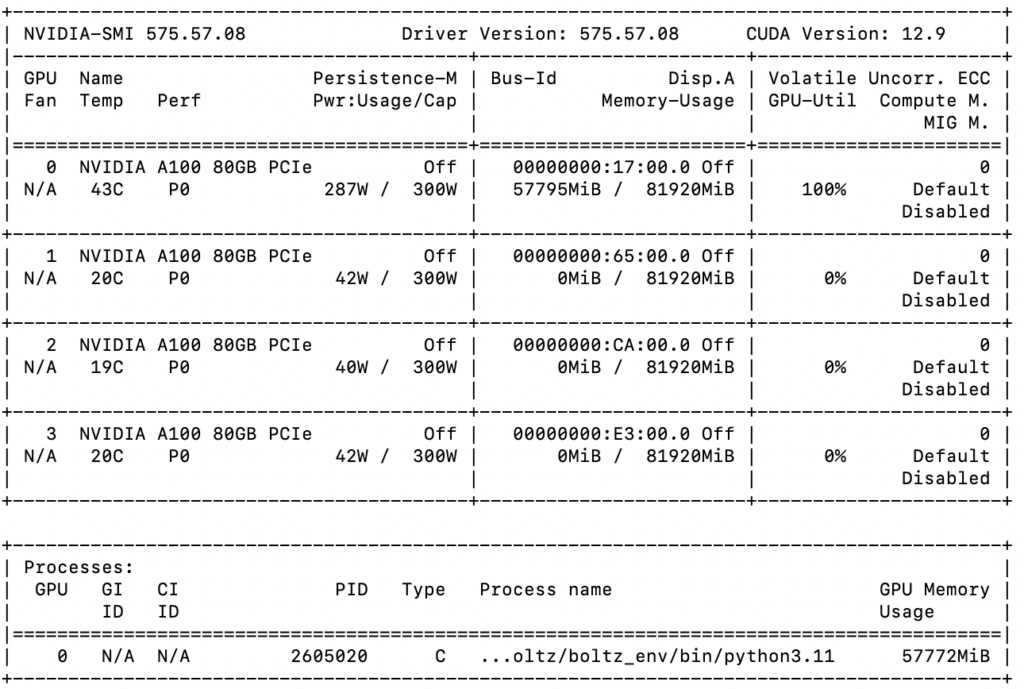
When the calculation has finished, an output file named “AQ_Zn.out” will have been created. Check that the calculation has printed out the correct energy: in vim search the following keyword: “Normal termination of Gaussian 16 at”
(That is, in command line, type in “vi AQ_Zn.out”, which will take you into the output file. Then, type the command “/Normal termination of Gaussian 16 at” and it will lead you to the part of the output where the phrase “Normal termination of Gaussian 16 at” occurs. After this keyword, there should be the day of week, month, day of month, time, and year the calculation finished (e.g. Tue Nov 14 15:31:56 2017))
Allocation of Memory:
In general, when executing a job on the GPU, you need to assign a sufficient amount of memory to each thread, as well as providing enough memory to the background process and disk cache (say, about 15-20%; for example, if you have 256 GB of RAM installed, leave 56 GB to background process/disk cache)- failure to do this will likely leave you with an error ““MDGPrp: Not enough Memory on GPU”.
You should be aware that there must be at least an equal amount of memory given to the CPU thread running each GPU as is allocated for computation (in this case, 11-12 on a 16 GB GPU- thus leaving 4-5 GB for the SYSTEM).
Since Gaussian gives equal shares of memory to each thread, this means the total memory allocated should be number of threads times memory required to use a GPU efficiently (e.g. if using 4 CPUs and 2 GPUs each with 16 GB of memory, you should use 4 x 12 GB of total memory)
Another example: if you assign 180 GB of memory to your job, you should try fewer cores (90% of which roughly will be available to run Gaussian)- in this case, 162 / 10 ~= 16 GB will be available to each core to run Gaussian. Of course, these recommendations are optional, and it is up to the user to change these memory settings and fine-tune the optimal combinations of number of cores and amount of memory.