
Andromeda is a remote machine; you can connect to it and initiate a remote terminal session over the internet via ssh (Secure SHell). Note that you will need to either be on campus or connected via the Eagle VPN before attempting to start an ssh connection.
- Mac
- Open a terminal window; you can find the terminal in Applications/Utilities, or by searching for it in the spotlight view. Press Command + Spacebar and type ‘terminal’ into the bar, then select ‘Terminal’:

- This will open a terminal session. You can connect to Andromeda by typing
ssh your-username@andromeda.bc.eduIf you need to run graphical applications, add the ‘-Y’ flag to your command, i.e.ssh -Y your-username@andromeda.bc.eduEnter your password and hit return. You may be prompted with an RSA key fingerprint and asked if you would like to continue; type ‘yes’ and hit return again, and you will be logged into Andromeda. Your session will start on a login node, and you will see a welcome message.
Here is an example: the user ‘johnchris’ connects to Andromeda through SSH from the terminal to access computational resources on a Mac computer.
- Open a terminal window; you can find the terminal in Applications/Utilities, or by searching for it in the spotlight view. Press Command + Spacebar and type ‘terminal’ into the bar, then select ‘Terminal’:
MTWQTI0558:~$ ssh -Y johnchris@andromeda.bc.edu
johnchris@andromeda.bc.edu's password:
Welcome to Andromeda 2

There is a 3600 cores per user limit on A2 to ensure fair access to HPC resources.

ATTENTION: 44 core nodes have 180G of RAM and are often idle. Please size your jobs to take advantage of those idle resources!!!

Scripts, builds, services, etc.. can be run on the compute nodes as Slurm jobs, which can be launched with the following commands:

interactive        srun         salloc         sbatch

Last failed login: [Time and IP Address If Applicable] on ssh:notty
There was [#] failed login attempt since the last successful login.
Last login: [Time] from [IP Address]
- Windows
- You can find a terminal window by searching for it in the bottom-left search bar of the desktop (on Windows 8/10) or the center (Windows 11). Simply type ‘terminal’ into the search bar to locate it.
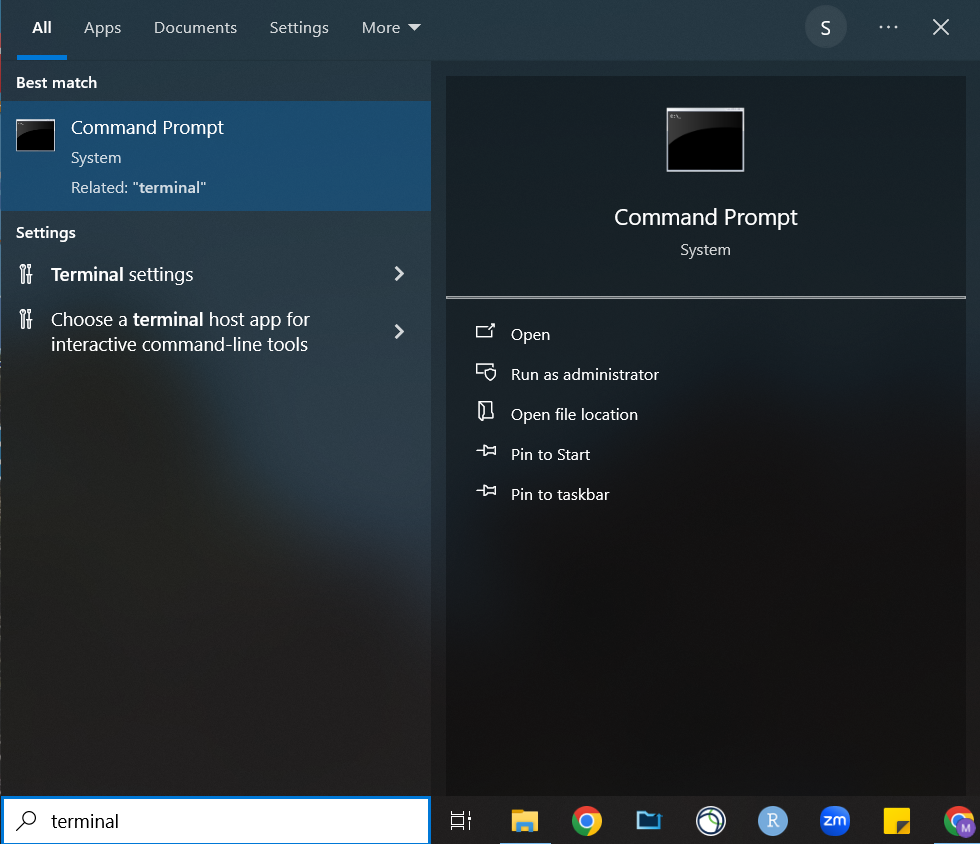
- Then select ‘Command Prompt’. You can then connect to Andromeda by typing
ssh your-username@andromeda.bc.eduEnter your password and hit return. You may be prompted with an RSA key fingerprint and asked if you would like to continue; type ‘yes’ and hit return again, and you will be logged into Andromeda. If you need to run graphical applications, add the ‘-Y’ flag to your command, i.e.ssh -Y your-username@andromeda.bc.edu
- You can find a terminal window by searching for it in the bottom-left search bar of the desktop (on Windows 8/10) or the center (Windows 11). Simply type ‘terminal’ into the search bar to locate it.
MTWQTI0558:~$ ssh -Y johnchris@andromeda.bc.edu
johnchris@andromeda.bc.edu's password:Welcome to Andromeda 2
There is a 3600 cores per user limit on A2 to ensure fair access to HPC resources.
ATTENTION: 44 core nodes have 180G of RAM and are often idle. Please size your jobs to take advantage of those idle resources!!!
Scripts, builds, services, etc.. can be run on the compute nodes as Slurm jobs, which can be launched with the following commands:
interactive srun salloc sbatch
Last failed login: [Time and IP Address If Applicable] on ssh:notty
There was [#] failed login attempt since the last successful login.
Last login: [Time] from [IP Address]